Set up Dzen Chat and get your first answer
Adding an AI assistant to a website involves more than placing a widget on a page. First, connect the website content, wait for it to be indexed, and then check an answer in the installed chat.
In this guide, you will:
- add a source;
- place the widget on your website;
- check indexing progress; and
- get and verify your first Dzen Chat answer.
Add a source
Open your Dzen Chat project and select Sources. Click Add source, choose the source type that fits your content, and complete the required fields. For a first check, add a website or a section that already contains an answer to a clear visitor question.
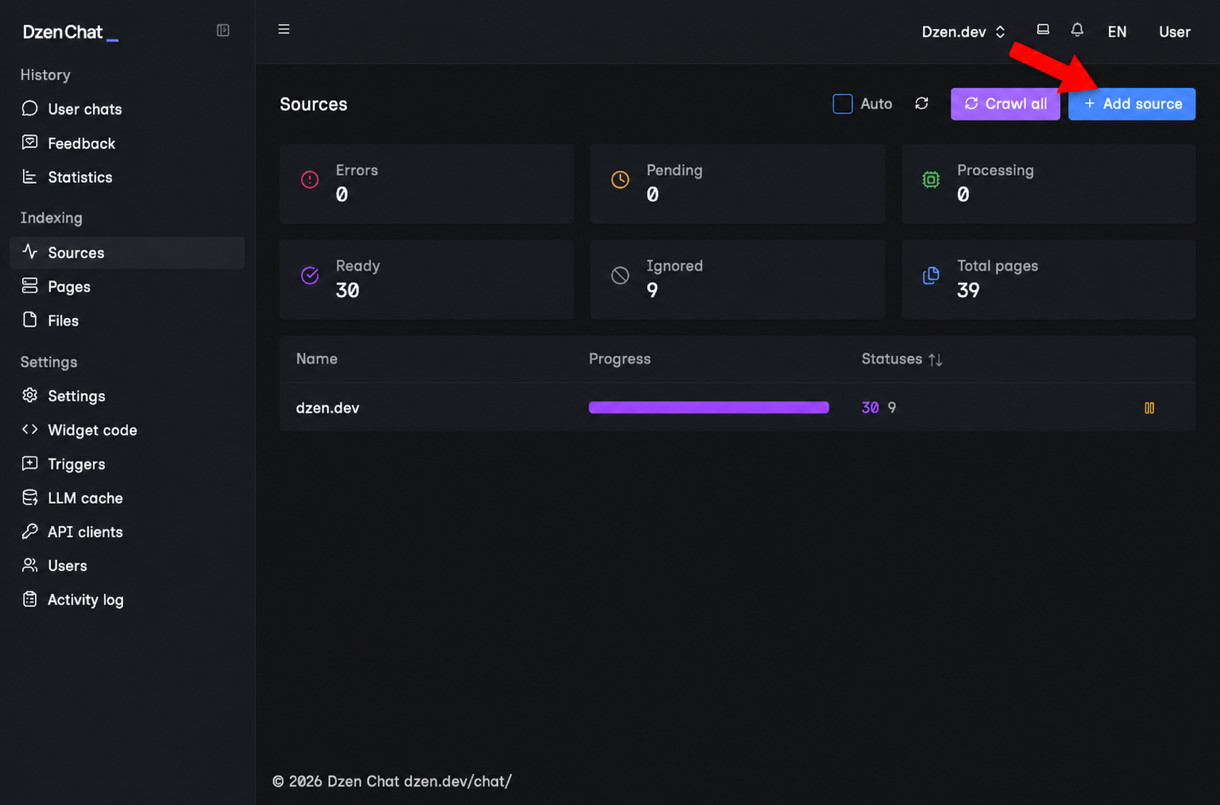
The screenshot shows a demonstration project. In your project, enter your own website address and save the source. Dzen Chat then collects and processes the pages it can access.
Place the widget on your website
Choose the connection method that fits your website:
- For WordPress, follow the Dzen Chat WordPress guide.
- For a custom integration, use the Update API.
For a manual installation, open the settings for the widget you want to use and
copy the provided code block in full. Place it before the closing </body> tag
in your page template, save the change, and open the website as a visitor. The
chat button should appear on the page.
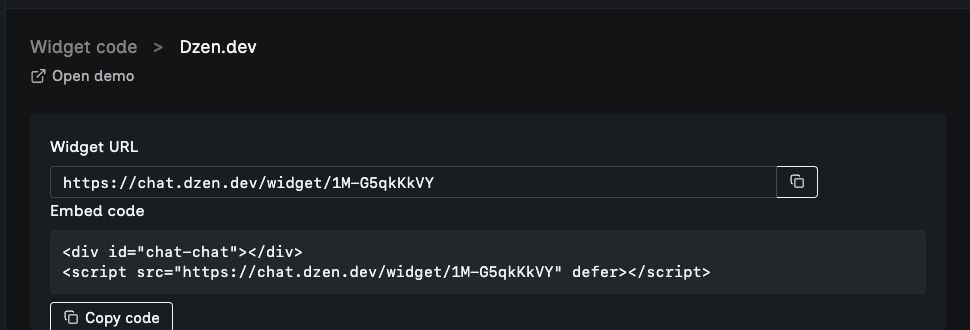
An example embed snippet.
Use the code from your own project: it already contains the settings for that widget.
Wait for indexing to finish
Return to Sources and follow the processing status:
- Pending: pages are waiting to be processed.
- Processing: Dzen Chat is processing pages.
- Ready: pages are indexed and can be used in answers.
- Errors: pages could not be processed.
- Ignored: pages were skipped and not added to the knowledge available to the chat.
The number of pages in Pending and Processing may change while indexing is in progress. Test the chat after the pages you need are Ready. This checks an answer against prepared content, rather than only confirming that the widget is visible.
Get your first answer
Open a page on your website that has the installed widget, open the chat, and ask a question that the connected source can answer. Wait for the complete response. Then open the link in Related pages and confirm that it leads to the source material you added.
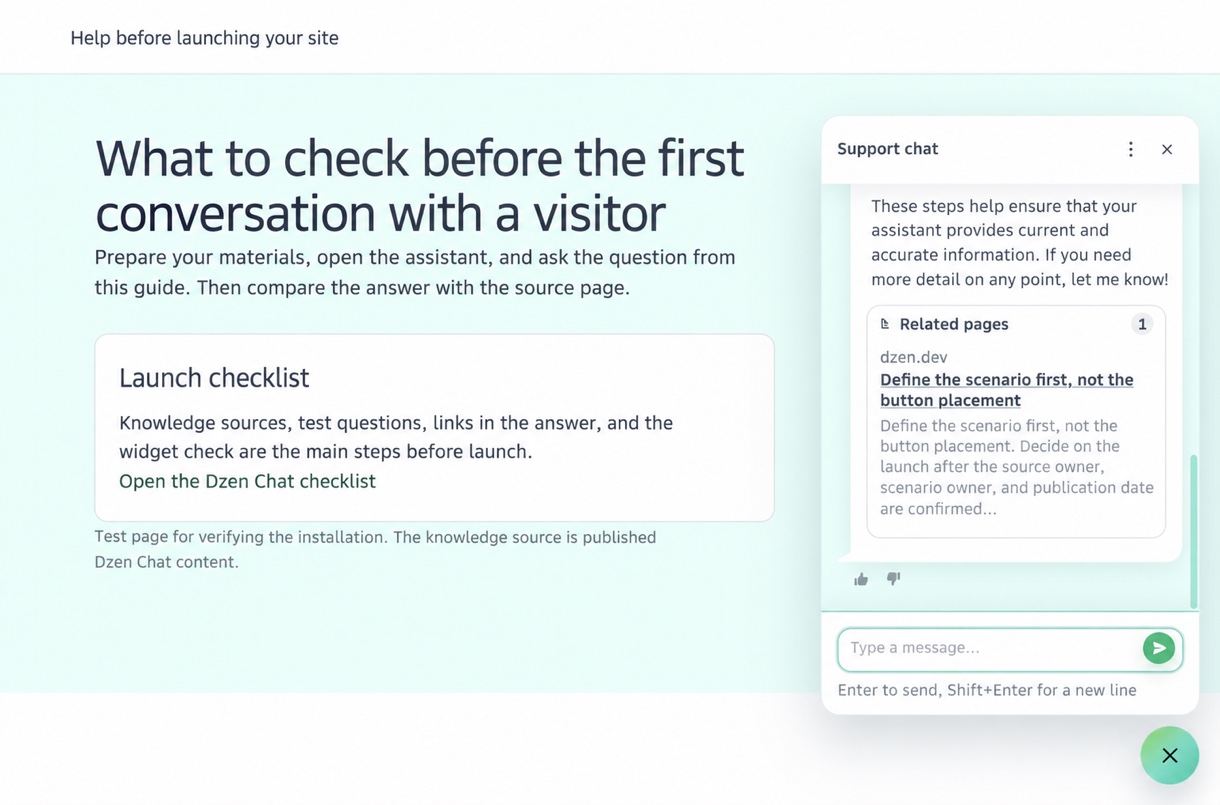
You have now added a source, indexed its pages, installed the widget, and verified that Dzen Chat answers from the connected material and shows a link to the source. This is your first verifiable answer.
The first answer starts quality control; it does not guarantee that the assistant knows every page on the website. To run this scenario with your own page, request a Dzen Chat installation demo.