Manage website sources in Dzen Chat
A useful knowledge base is not defined by the number of URLs it contains, but by how accurately it answers visitors' questions. Start by setting a clear boundary: decide which website sections the assistant needs, which pages to exclude, and who is responsible for keeping the content current.
For example, a service setup scenario might need the product page, documentation, and terms. News, archives, search results, and administrative pages do not belong in that initial set. A focused set makes it easier to check where an answer came from and spot duplicate or outdated content.
Review a source and its pages
Open Sources in your Dzen Chat project to see the connected websites, their processing states, and the pages found for each source.
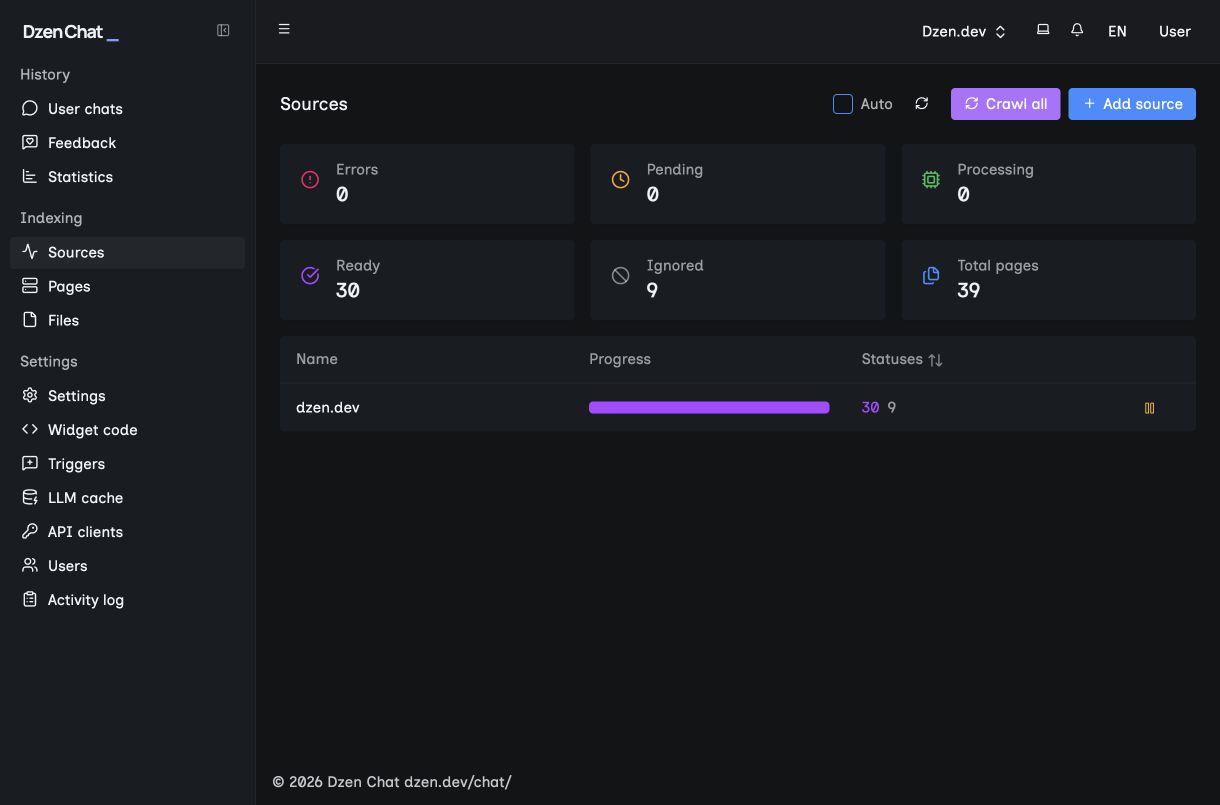
Open a source when you need to answer these practical questions:
- Which pages did Dzen Chat find and add to the knowledge base?
- Which pages are still processing or ended with an error?
- Does the page set match the topics visitors will ask about?
Do not rely on similar page titles alone. Check the full URL and the page content: a feature announcement and instructions for using that feature answer different questions.
Add a website and set an indexing boundary
Select Add source, enter the website address, and save it. Dzen Chat then collects the pages it can access for the knowledge base. Start with a public URL that belongs to the website section you want the assistant to use.
Before you start, make a short checklist: sections that should be found, pages that are not needed, and content that is already outdated. This lets you judge the processing result by relevance rather than by the total number of URLs.
Indexing does not automatically make a website ready for answers. It collects available material; your team still needs to confirm that the set includes current instructions, terms, and answers to common questions. If an important page requires a login, do not treat it as available for a public scenario until you have checked its access separately.
Use a sitemap as a guide
A sitemap is a file that lists website URLs and helps crawlers and services discover important pages and their structure. It is particularly useful for deep sections, new content, or pages that rarely receive ordinary links.
For indexing, a sitemap is a guide, not a guarantee. Listing a URL does not make its page accessible or replace checking its content. A page may be restricted, removed, outdated, or unsuitable for the knowledge base. Conversely, a missing sitemap entry is not final proof that a page is unnecessary; check how it is available on the website.
Keep the sitemap aligned with the website: add important public content and remove deleted URLs. The next processing run will then be easier to compare with the set you expected.
Resolve errors and remove unnecessary pages
After processing, filter the page list by state. Start with pages that have errors: they are not available to the knowledge base in the same way as ready pages and need an explicit decision. Check the URL, whether the page is reachable, and whether it is needed for visitor answers.
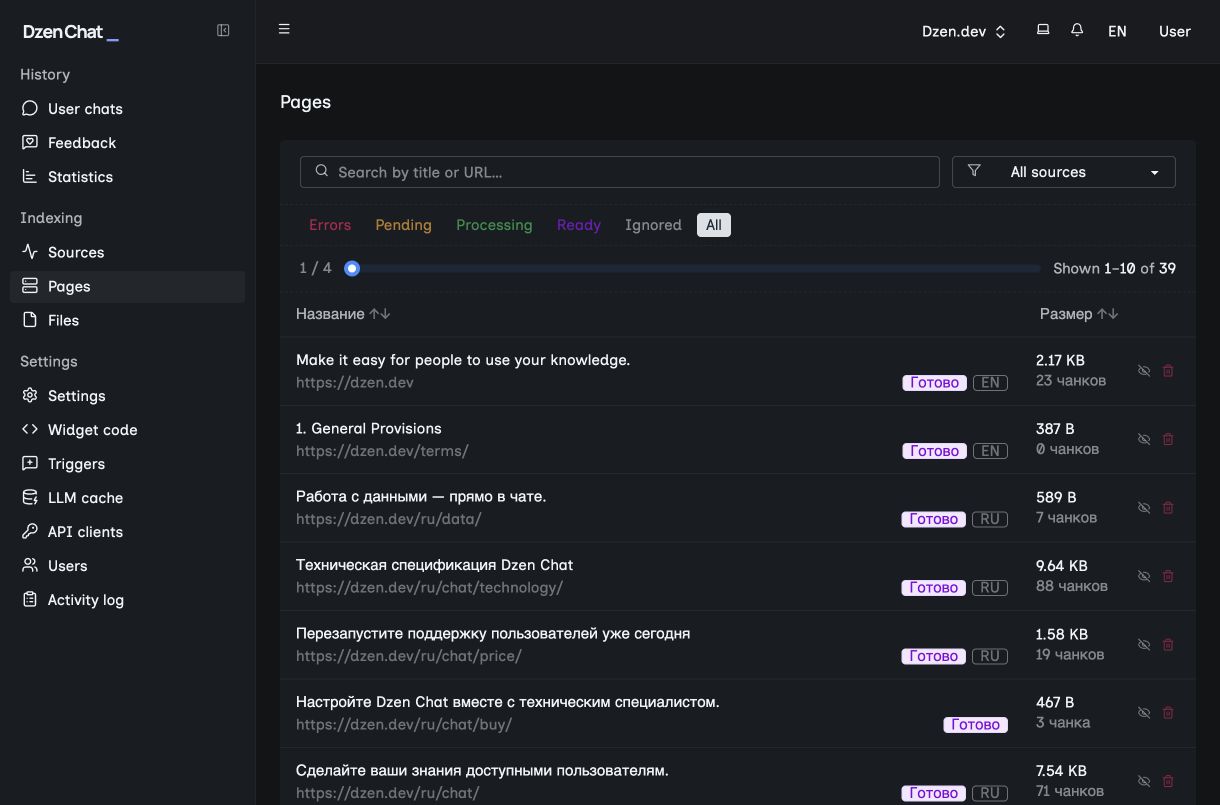
If an error page is not needed, exclude it from indexing with a filter. Common examples are internal search results, archived versions, and administrative sections. A filter should describe a class of unnecessary URLs rather than hide one accidental error; otherwise similar pages can return during the next processing run.
If the page is needed, fix the cause on the website or refine the source rule, then process it again. Do not remove error URLs without checking them: one may be an instruction linked from an answer.
Reindex after meaningful changes
Reindex a source after a meaningful change: you updated an instruction, moved a section, fixed a broken URL, changed inclusion rules, or updated the sitemap. Reindexing lets the knowledge base retrieve the current state of pages instead of relying on earlier material.
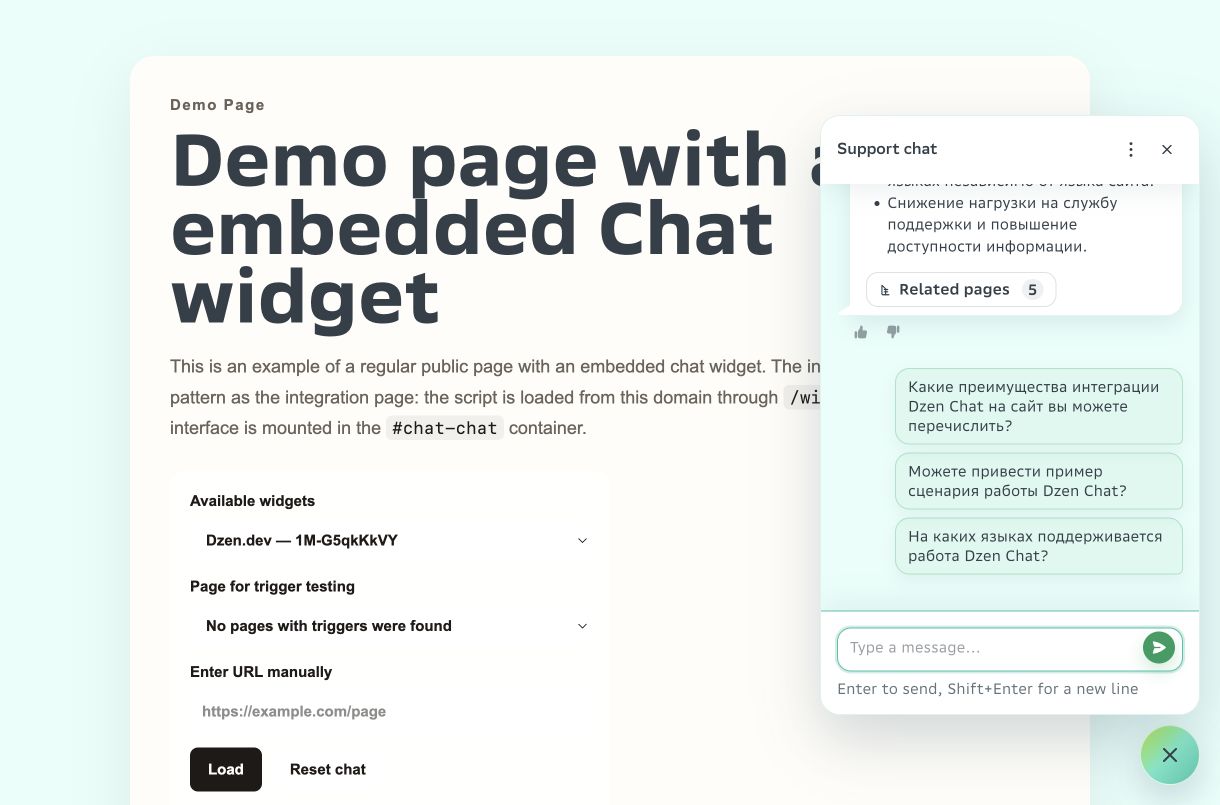
Record what changed before you reindex. Afterwards, confirm three things: the required page was found again, it has no error, and its text matches the published website version. For critical topics, ask one or two real visitor questions and open the sources used in the answer.
Do not reindex only because an answer seems inaccurate. First identify the cause: the required page may be missing, the knowledge base may contain conflicting content, or the website may not provide a clear answer.
Combine multiple websites carefully
You can connect multiple websites to one project. They share one knowledge base, so the assistant can use material from different sources in one scenario, such as documentation on one domain and public terms on another.
Each website still needs its own boundary and review. Do not add duplicate versions of an instruction from two domains unless needed: differences between them can produce an ambiguous answer. Assign an owner to each source, record which topics it covers, and check for duplicates regularly.
Start with one or two visitor questions, connect only the sources needed to answer them, and check their status. When that set behaves predictably, expand the knowledge base with the next website sections.
To configure sources for your website, request a Dzen Chat installation demo.