How to Install an AI Agent on Your WordPress Site
1. Download the archive and activate the plugin
Download the installation archive from the Dzen Chat for WordPress releases page. Do not use the automatically generated archives labelled Source code for installation.
In the WordPress admin area, open Plugins → Add New → Upload Plugin. Select the downloaded archive, click Install Now, then Activate. If activation is not offered immediately, open the installed plugins list and activate Dzen Chat there.
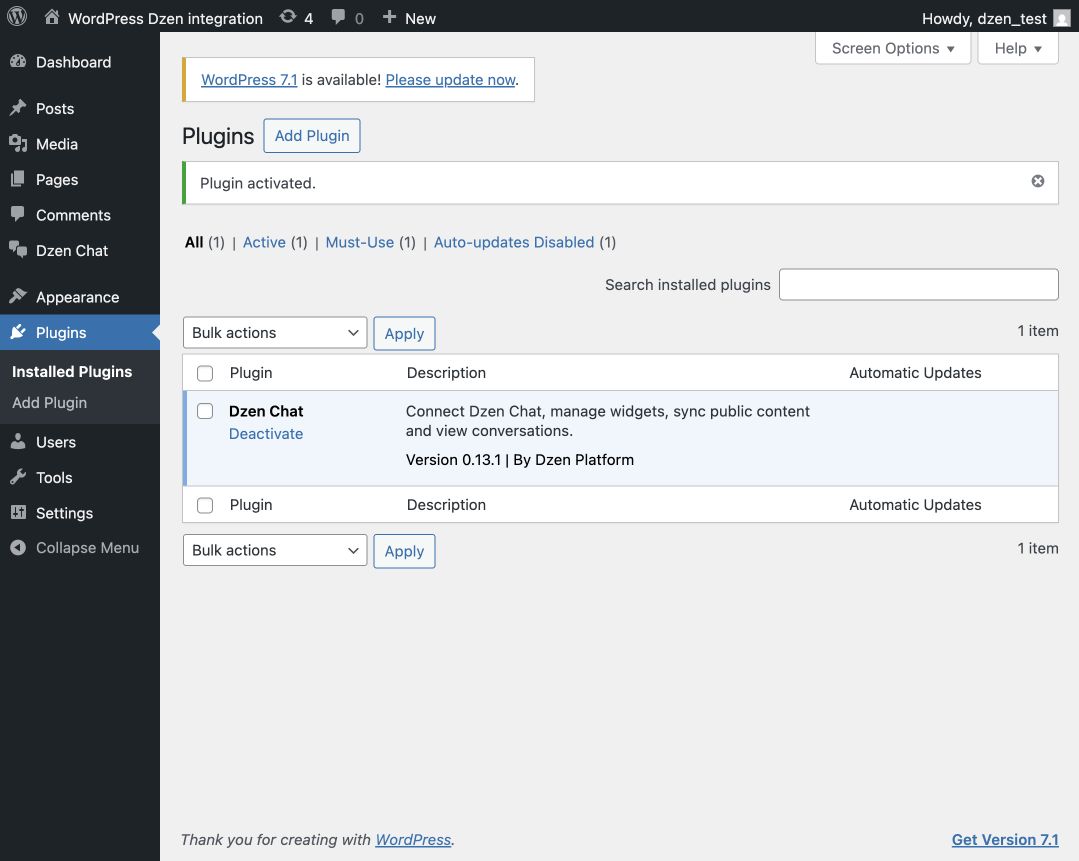
After activation, Dzen Chat appears in the menu. This only confirms that the plugin is installed: you still need to connect the site to a project and choose an assistant.
2. Connect the site to a Dzen Chat project
Open Dzen Chat in the WordPress menu and select Connect Dzen Chat. Sign in to Dzen Chat, choose an existing project or create one, complete the connection, and return to WordPress. Choose the project that should contain the knowledge for this particular site.
On the plugin page, check the connection message and the site address.
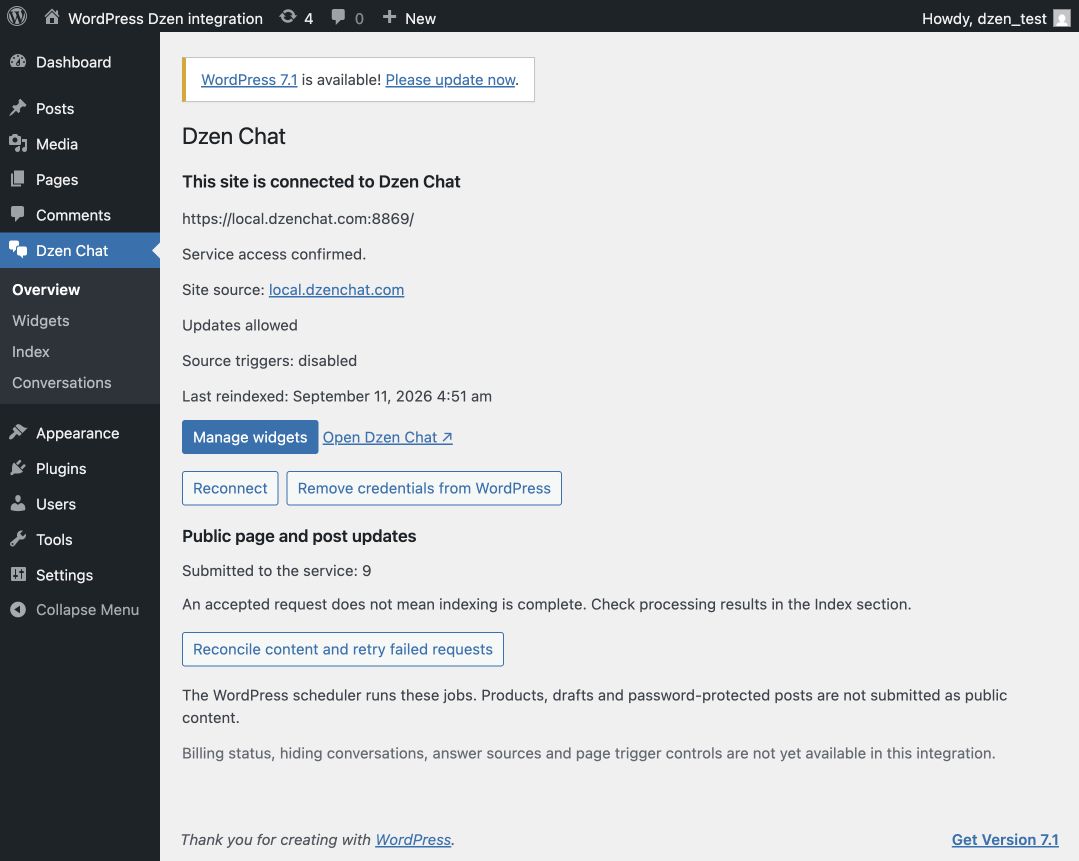
If the connection is interrupted, start it again from the plugin menu. Once you return successfully, you can continue with widget placement.
3. Choose or create a widget for the site
Open Dzen Chat → Widgets. Select an available widget or create a new one, then click Save selection.
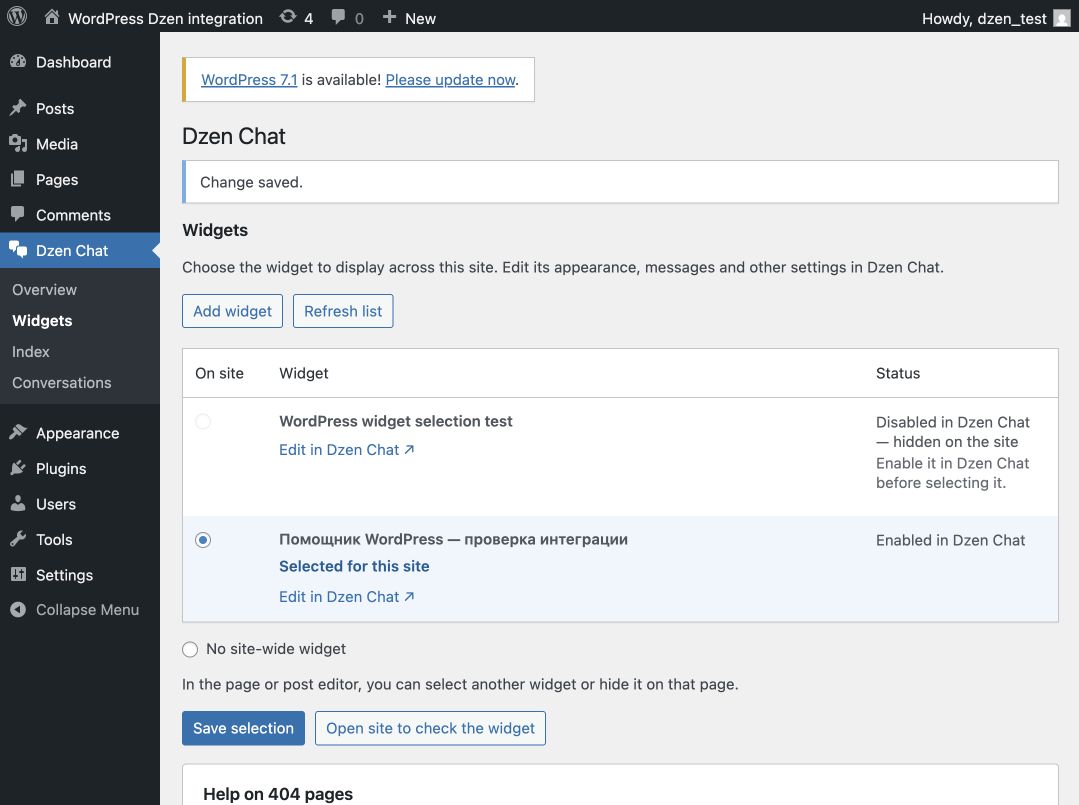
For an individual page, the settings are in its editor: you can use the site-wide widget, select a different one, or hide the chat. Before testing, make sure chat hiding is not enabled on the page you use for the check.
4. Check the indexing process
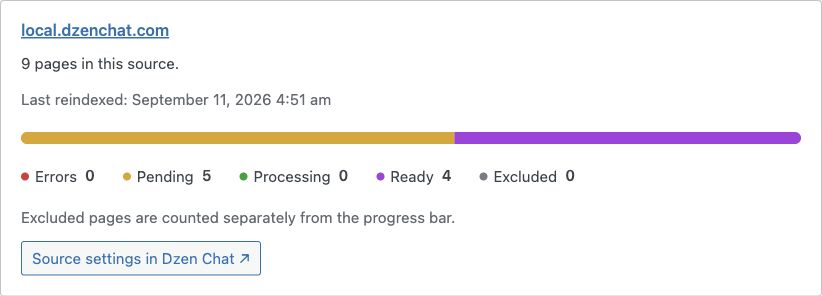
The plugin sends public pages and posts for processing when it is connected and when content is published or changed. Open Index to see the processing status of the site’s materials.
After publishing or changing a page, wait until processing is complete in Index. Only then will the updated content be available to the assistant.
5. Enable the widget and check its answers
You do not need to wait until every item on the site has been processed. Once Index shows processed pages or posts, enable the selected widget on the site and open it as a visitor.
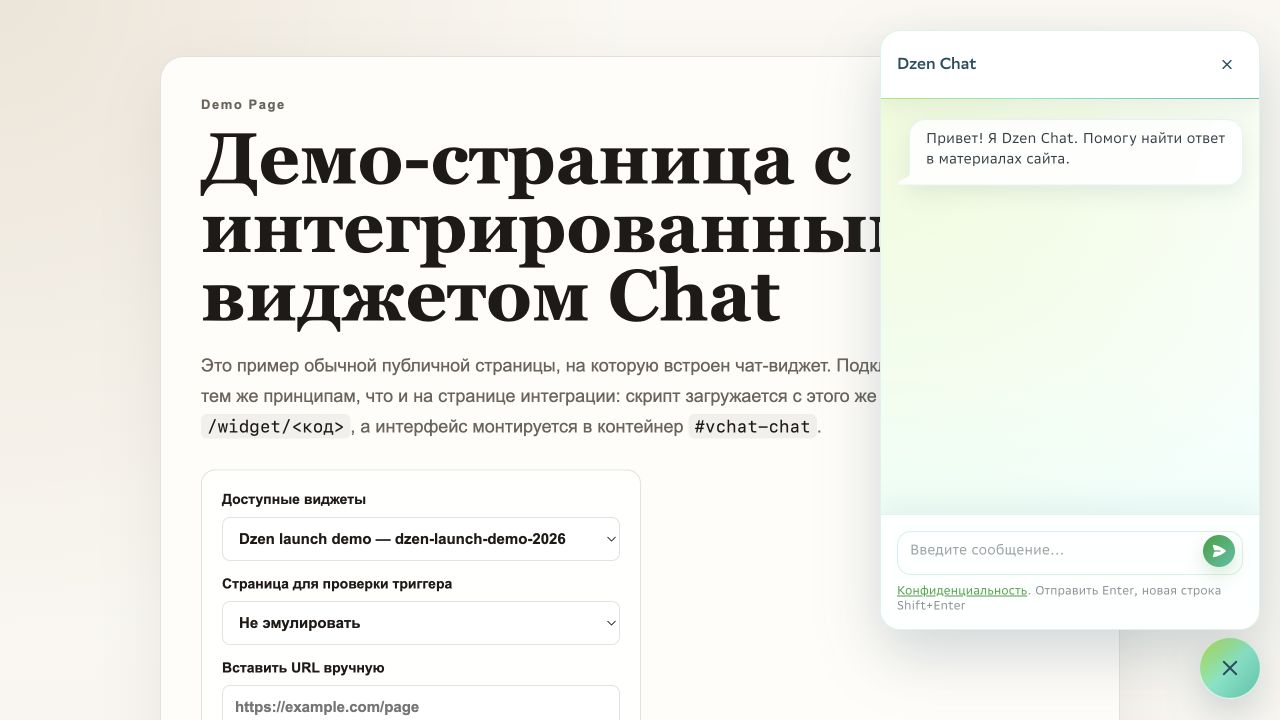
Ask questions whose answers are present in the materials that have already been processed. This verifies that the widget is available online and that the assistant uses the site’s content. As indexing finishes, the remaining materials become available too.
To check the installation against your own scenario, talk it through with the Dzen Chat team.